> ## Documentation Index
> Fetch the complete documentation index at: https://support.contenta.ai/llms.txt
> Use this file to discover all available pages before exploring further.
# Complete Google Ad Manager setup
> After accepting the MCM invitation, you may be asked to finish setting up your Google Ad Manager account. This is required to activate monetization.
## What you need to do
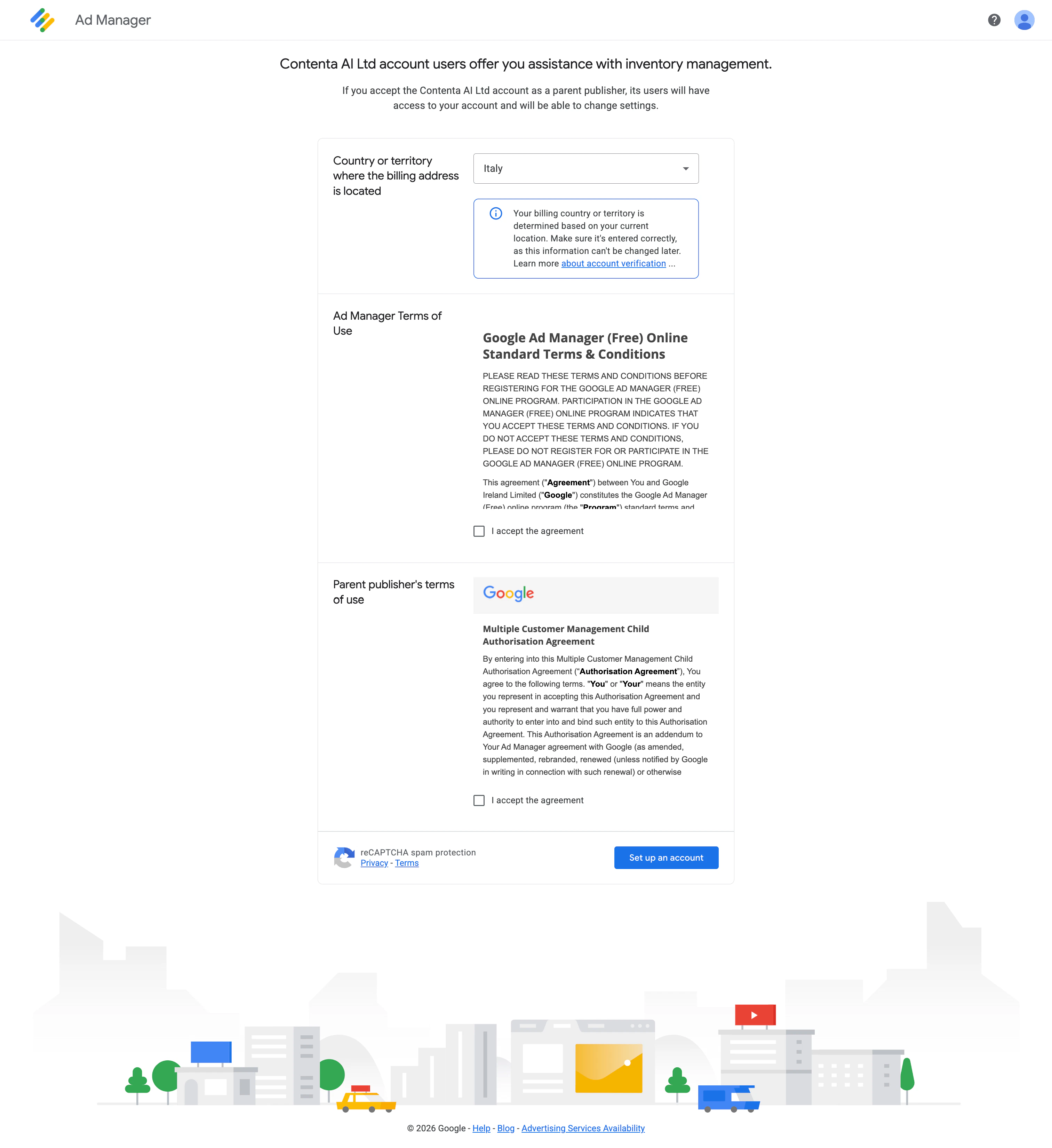
After accepting the MCM invitation, you’ll be guided through a short setup process in Google Ad Manager to activate monetization.
* Select your billing country
Choose the country or territory where your billing address is located. Make sure this is correct - it cannot be changed later
* Read the Google Ad Manager Terms of Service and the Multiple Customer Management (MCM) Child Authorization Agreement
* Tick both checkboxes to proceed
Click **Set up an account** to finish
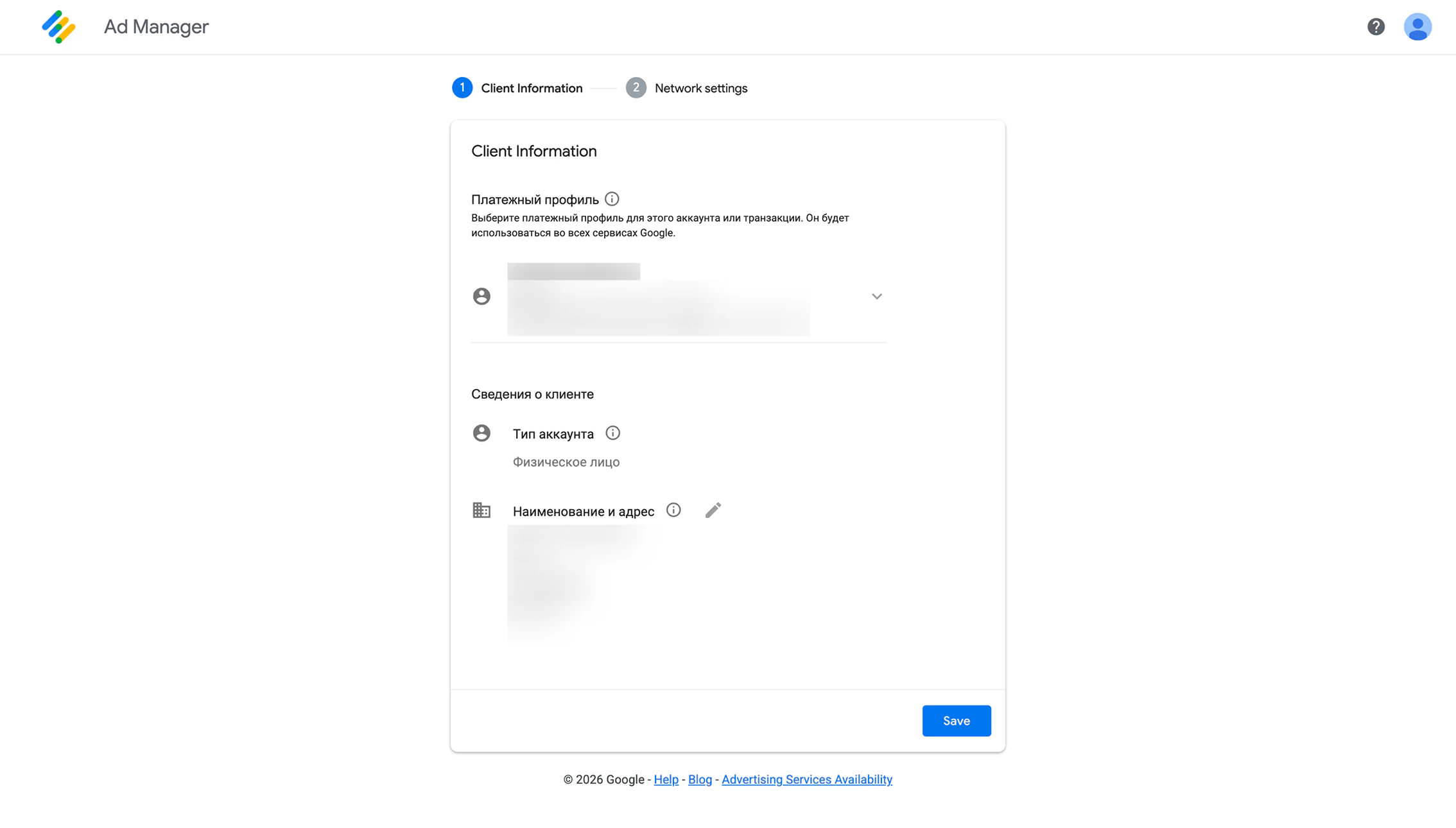
 During setup, you’ll be asked to confirm your account details in Google Ad Manager.
* Confirm whether your account is set as **individual** or **business**
* Make sure your billing name and address are correct
* Edit any incorrect information directly in this step
Click **Save** to continue
During setup, you’ll be asked to confirm your account details in Google Ad Manager.
* Confirm whether your account is set as **individual** or **business**
* Make sure your billing name and address are correct
* Edit any incorrect information directly in this step
Click **Save** to continue
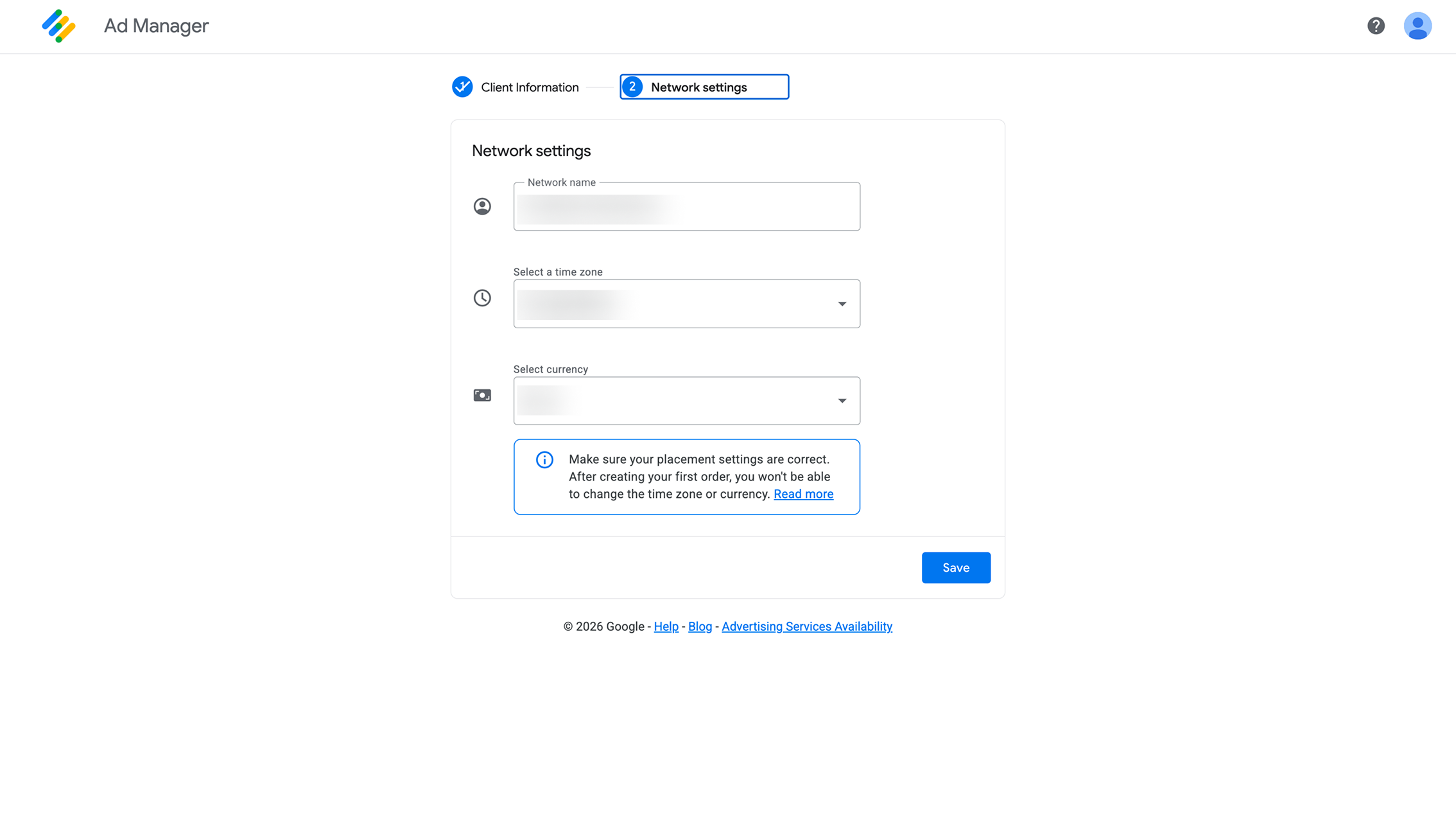
 Fill in the following details:
* Network name - Your company or website name
* Time zone - Select your primary operating time zone.
* Currency - Choose your preferred currency for reporting and payments
Make sure your **time zone and currency are correct** - they cannot be changed later.
Click **Save** to continue.
Fill in the following details:
* Network name - Your company or website name
* Time zone - Select your primary operating time zone.
* Currency - Choose your preferred currency for reporting and payments
Make sure your **time zone and currency are correct** - they cannot be changed later.
Click **Save** to continue.
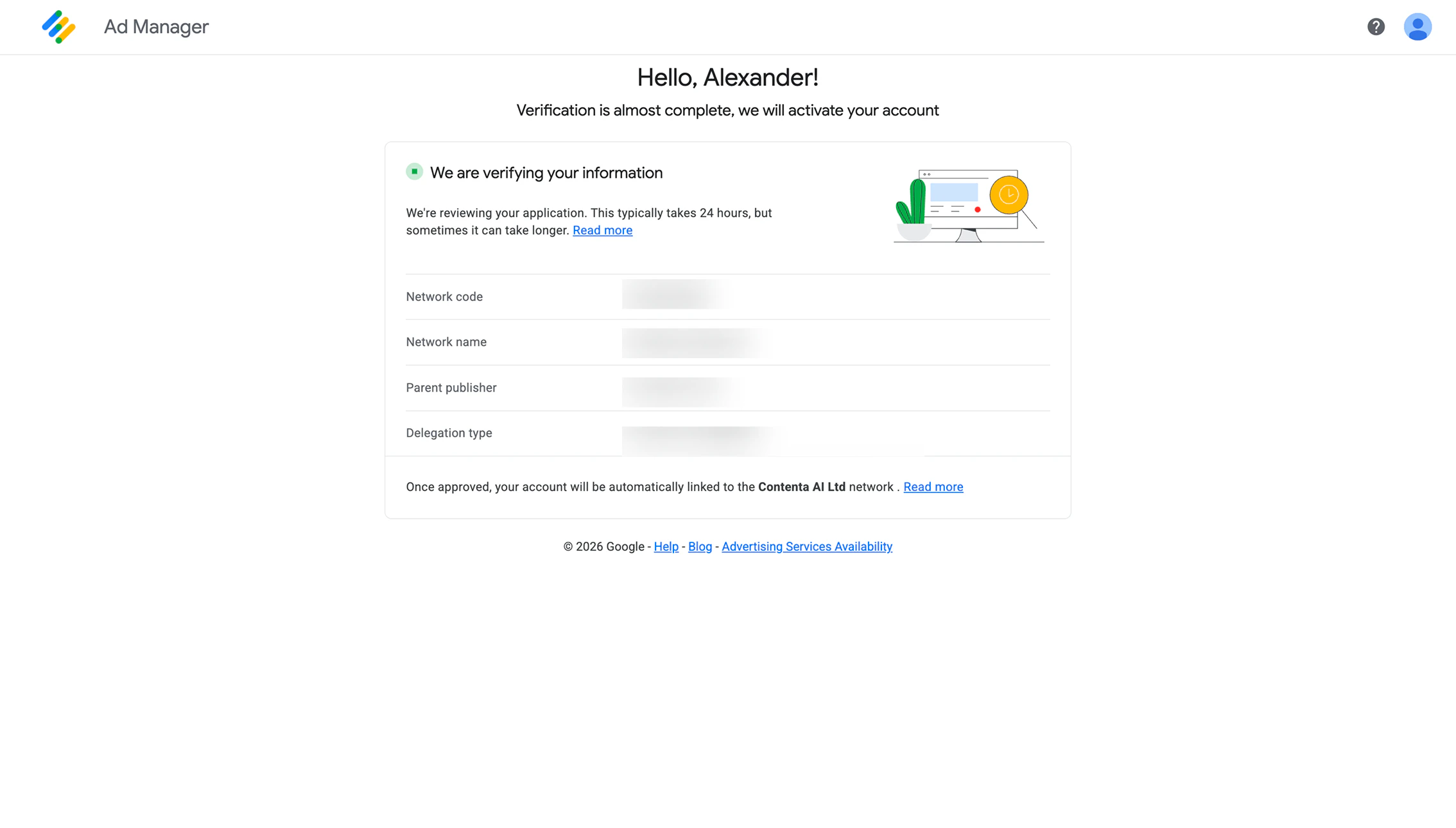
 Google will review your account information before activating your account.
* This usually takes up to 24 hours
* In some cases, it may take longer
Once approved, your account will be automatically linked to Contenta AI, and monetization will be activated.
Google will review your account information before activating your account.
* This usually takes up to 24 hours
* In some cases, it may take longer
Once approved, your account will be automatically linked to Contenta AI, and monetization will be activated.
 ## Before you go
To start displaying ads, your website must meet the following requirements:
* **Live and accessible** - Your site must be publicly available (including a valid ads.txt file)
* **Sufficient content** - Your site must contain enough content to qualify for ad serving
* **Policy compliance** - Your site must meet the [Google Publisher Policies](https://support.google.com/admanager/answer/10502938)
Have a question not covered here? Email the Contenta AI support team at [support@contenta.ai](mailto:support@contenta.ai)
## Before you go
To start displaying ads, your website must meet the following requirements:
* **Live and accessible** - Your site must be publicly available (including a valid ads.txt file)
* **Sufficient content** - Your site must contain enough content to qualify for ad serving
* **Policy compliance** - Your site must meet the [Google Publisher Policies](https://support.google.com/admanager/answer/10502938)
Have a question not covered here? Email the Contenta AI support team at [support@contenta.ai](mailto:support@contenta.ai)