> ## Documentation Index
> Fetch the complete documentation index at: https://support.contenta.ai/llms.txt
> Use this file to discover all available pages before exploring further.
# Connect to WordPress
> You can connect your WordPress site to publish, manage, and optimize content directly from Contenta AI. This removes the need to switch between tools and keeps your entire content workflow in one place.
## Before you start
To connect Contenta AI with WordPress, you’ll need a WordPress Application Password.
This allows secure access to your site without sharing your main account password.
## Get a WordPress Application Password
Log in to your WordPress admin panel.
Navigate to Users → Profile (or Users → Your Profile).
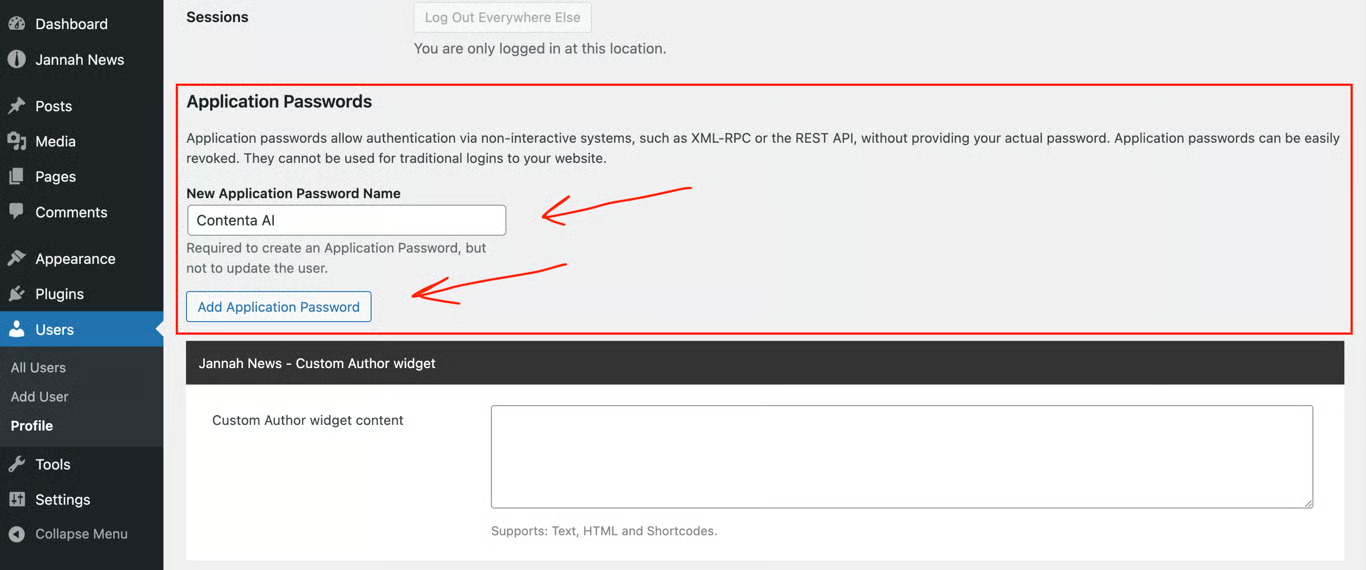
Scroll down to the **Application Passwords** section.
Add a name (e.g. Contenta AI) to identify this connection.
Click **Add Application Password** to create a new password.
 Copy and store the generated password in a safe place - it will only be shown once.
**Important:** Application passwords are shown only once. If you lose it, you’ll need to revoke it and generate a new one.
Make sure the WordPress user you generate the Application Password for has permission to create and publish posts. Users with the Author, Editor, or Administrator role can do this by default.
## Connect WordPress in Contenta AI
Once you have your Application Password, go to the Integrations page to connect your WordPress site.
In [Contenta AI](https://app.contenta.ai/), navigate to the **Integrations** page from the main menu.
Locate **WordPress** under the Content Management section and click **Connect Now**.
A connection window will open where you can enter your WordPress details.
Provide your **Site URL**, **WordPress username**, and **Application Password**.
Copy and store the generated password in a safe place - it will only be shown once.
**Important:** Application passwords are shown only once. If you lose it, you’ll need to revoke it and generate a new one.
Make sure the WordPress user you generate the Application Password for has permission to create and publish posts. Users with the Author, Editor, or Administrator role can do this by default.
## Connect WordPress in Contenta AI
Once you have your Application Password, go to the Integrations page to connect your WordPress site.
In [Contenta AI](https://app.contenta.ai/), navigate to the **Integrations** page from the main menu.
Locate **WordPress** under the Content Management section and click **Connect Now**.
A connection window will open where you can enter your WordPress details.
Provide your **Site URL**, **WordPress username**, and **Application Password**.
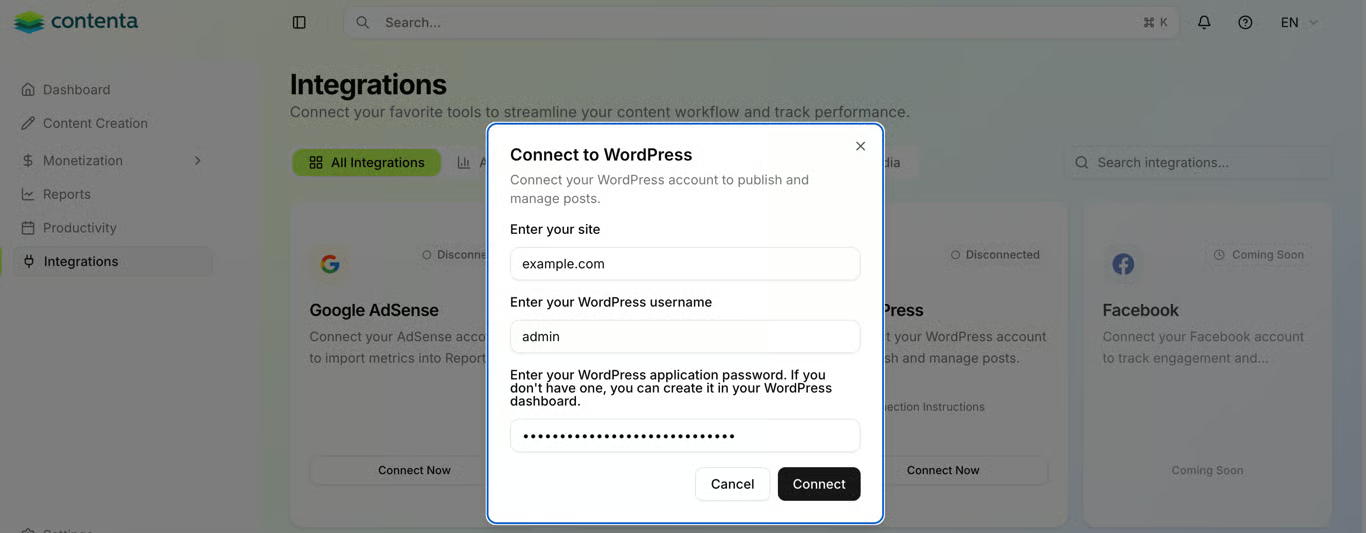 Once all fields are filled in, click Connect to complete the setup.
After connecting, your status will show **Connected**, and you can publish content directly to your WordPress site.
Have a question not covered here? Email the Contenta AI support team at [support@contenta.ai](mailto:support@contenta.ai)
Once all fields are filled in, click Connect to complete the setup.
After connecting, your status will show **Connected**, and you can publish content directly to your WordPress site.
Have a question not covered here? Email the Contenta AI support team at [support@contenta.ai](mailto:support@contenta.ai)