
What you need to do
1
Check your inbox
Look for an email from Google Ad Manager sent by 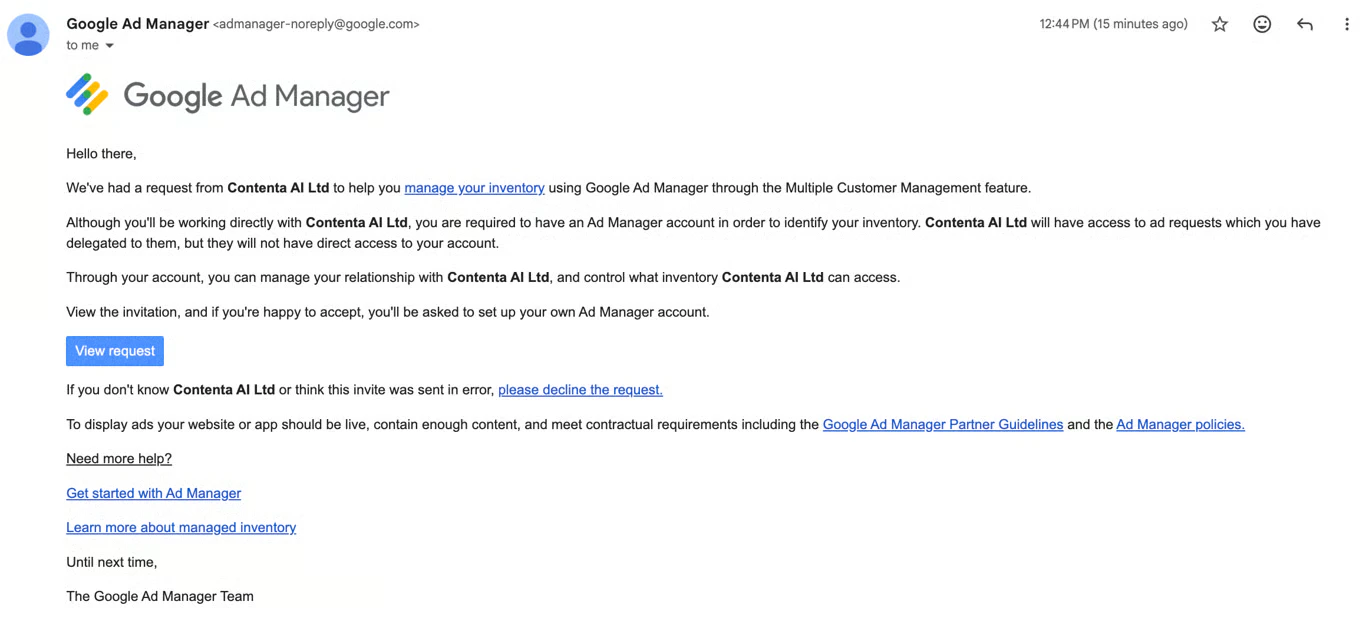
admanager-noreply@google.com.If the email isn’t in your inbox, check your spam or junk folder. If you still can’t find it, contact support@contenta.ai and the team will help you resend the request.
2
Open the invitation email
Open the email with a subject line similar to “Request to manage your ad inventory”
3
View the request
Inside the email, click View request. This opens the Google Ad Manager interface where you can review the details of the access request.
4
Accept access
Review the access details shown on the page, then click Accept to complete the setup. Contenta AI will now be able to manage and optimize your ad inventory on your behalf.
Before ads can display
To display ads, your website or app must meet the following requirements:- Live and accessible - Your site must be publicly available (inc. ads.txt file)
- Sufficient content - Your site must contain enough content to qualify for ad serving
- Policy compliance - Your site must meet the Google Publisher Policies
Have a question not covered here? Email the Contenta AI support team at support@contenta.ai